 Cointracking
 CSV imports map exported columns to transaction records
Cointracking CSV imports use preset mappings for supported exchange exports, manual assignments in the custom importer, or AI-assisted mapping through the File Converter. Your file’s format determines the route. Review dates, amounts, transaction types, and fees, then compare the imported records with the original export.
The short version: Review an AI-generated column mapping before importing, because the File Converter can produce incomplete or inaccurate output.
Column assignments determine what each row records
Mapping connects each source column to a transaction field, so the importer knows which values describe dates, assets, amounts, and transaction types. A dedicated exchange importer recognizes its supported export layout. The custom importer asks you to make those assignments. The File Converter uses AI to interpret unfamiliar layouts, then presents its mapping for review. The route matters because a column heading alone doesn’t establish how an importer will read the values underneath it. Start with the format that the exchange actually exported, including its report category, before deciding how much manual interpretation is necessary.
A supported export starts with the matching importer
When an exchange supplies a recognized export, its dedicated importer handles the supported column layout without manual mapping.
Keep the source layout
Choose the importer for the exchange and the export type described by its instructions. Keep the exported CSV unchanged as your starting file. A dedicated importer’s preset applies to the format it recognizes; a rearranged spreadsheet needs review before you assume the same mapping applies.
Confirm the imported interpretation
Compare representative imported entries with the source records, including transaction dates, currencies, amounts, types, and fees. An accepted upload confirms that the importer processed the file. Financial accuracy also requires those fields to retain their meaning.
Which columns need mapping in a custom CSV import?
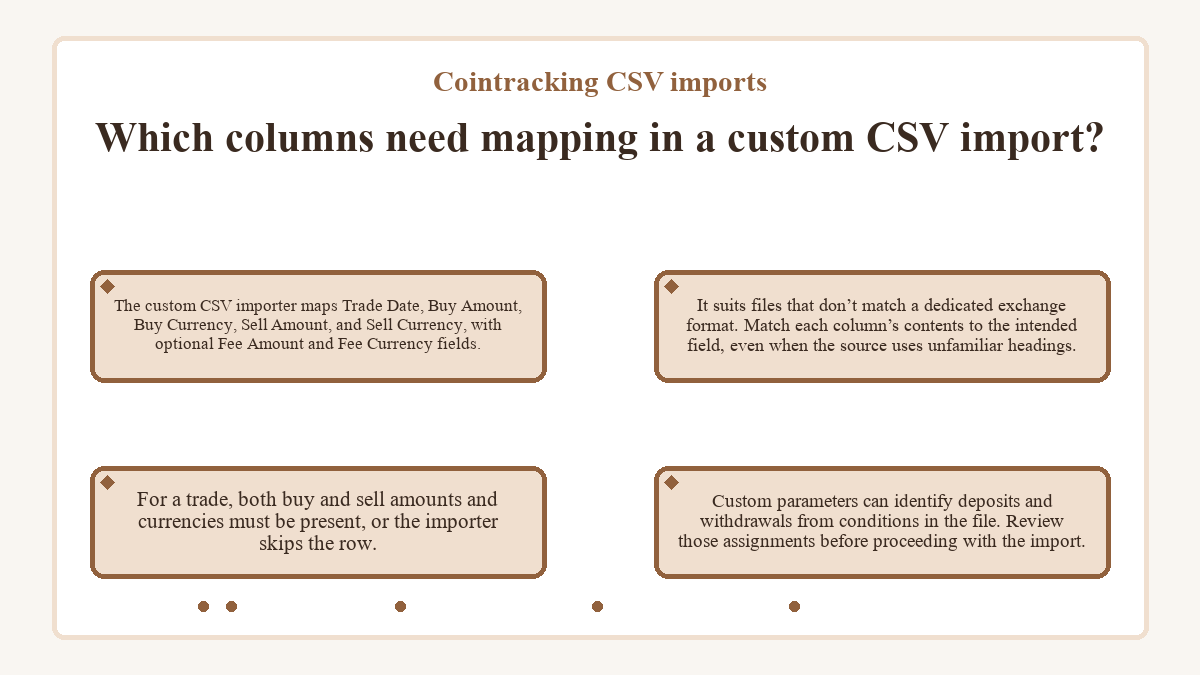
The custom CSV importer maps Trade Date, Buy Amount, Buy Currency, Sell Amount, and Sell Currency, with optional Fee Amount and Fee Currency fields. It suits files that don’t match a dedicated exchange format. Match each column’s contents to the intended field, even when the source uses unfamiliar headings. For a trade, both buy and sell amounts and currencies must be present, or the importer skips the row. Custom parameters can identify deposits and withdrawals from conditions in the file. Review those assignments before proceeding with the import.
Date formats and time zones control timestamp interpretation
Date format tells the importer how to read a timestamp; the time zone tells it how to interpret that recorded time.
For CSV imports with configurable date, time zone, or column settings, match those settings to the export. Incorrect selections can produce missing or duplicate entries. Keep the source timestamp available when comparing the imported date and time, particularly where the export’s convention is unfamiliar. Don’t substitute the computer’s local time zone without establishing that it matches the file.
Transaction types and fees preserve the event’s meaning
A row’s transaction type tells the system what happened, while its fee data records an associated cost.
Match the recorded activity
Trades, deposits, withdrawals, and income serve different purposes in the transaction history. Preserve the source record’s meaning when assigning a type. Exchange trade exports may omit transfers or other categories, so complete column mapping and complete account coverage remain separate requirements.
Keep the fee and its asset consistent
The fee amount and the currency charged belong together. Compare both with the source, alongside any fee shown in the imported trade. Preserve the charge that the export records, including the asset used to pay it. Check whether the buy or sell amount already includes the fee before adjusting it. For fees in a traded currency, those amounts must reflect the charge; the fee field alone is informational.
How does the File Converter map unfamiliar columns?
The File Converter uses AI to identify dates, assets, amounts, and transaction types in CSV or Excel files, including exports without a direct importer.
CSV and Excel inputs
Files can come from exchanges, wallets, blockchain explorers, another service, or a personal spreadsheet. The converter interprets their structure and produces an import-ready format. It accommodates unsupported source formats without requiring the original columns to fit a dedicated exchange template.
Review before import
The tool shows how source columns map to transaction fields before import. Review that interpretation against the file, especially where headings don’t clearly explain their contents. AI output can be incomplete or inaccurate, so the review belongs before adding the converted file to your account.
A mapping choice for an unrecognized export
If a dedicated importer doesn’t recognize the export, choose between custom mapping and the File Converter before adding more transactions to your account.
Keep an unchanged copy of the export while comparing its columns with the required fields. Manual assignments suit a layout that you can interpret. AI-assisted conversion provides a proposed mapping that you review before import.
- If the file matches a dedicated importer’s supported export, use that preset route.
- If usable fields appear under unfamiliar headings, consider the custom importer’s manual assignments.
- If you choose the File Converter, check access through Expert or Unlimited and review the proposed mapping.
- If a row lacks a required value, recover that information before importing the affected row.
Account capacity also matters because transaction limits apply to accumulated imports across all years. Access to the conversion feature and that allowance affect which plan can support the import. An upgrade doesn’t recover a required value that the file lacks.
Historical CSVs can supplement API coverage
CSV uploads can fill historical gaps when an exchange API doesn’t supply older trades or every transaction category. An API connection can supply ongoing data where the exchange and plan support it. The two methods can coexist when the exchange’s importer supports combining them. Coinbase’s CSV and API imports are incompatible.
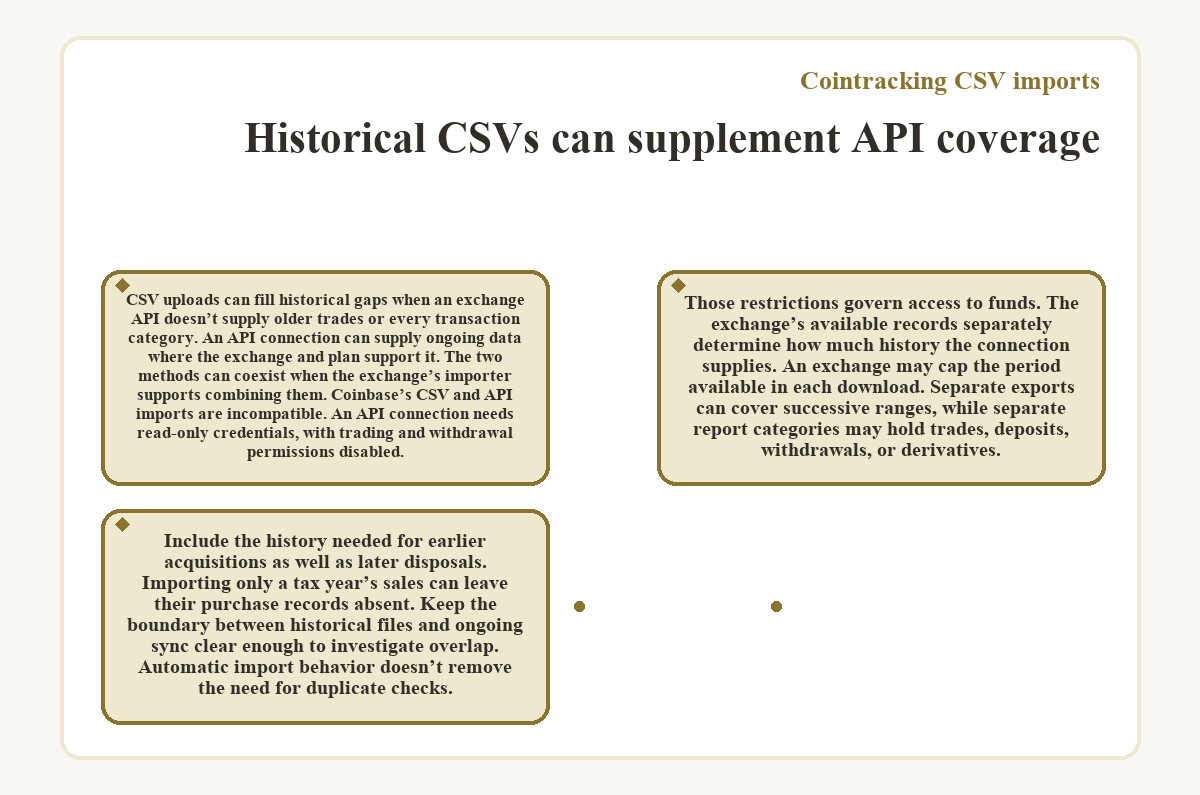
An API connection needs read-only credentials, with trading and withdrawal permissions disabled. Those restrictions govern access to funds. The exchange’s available records separately determine how much history the connection supplies.
An exchange may cap the period available in each download. Separate exports can cover successive ranges, while separate report categories may hold trades, deposits, withdrawals, or derivatives. Include the history needed for earlier acquisitions as well as later disposals. Importing only a tax year’s sales can leave their purchase records absent.
Keep the boundary between historical files and ongoing sync clear enough to investigate overlap. Automatic import behavior doesn’t remove the need for duplicate checks.
Overlap calls for matching transactions across import sources
Repeated entries can come from overlapping files, repeated uploads, or a combination of CSV and API records. Compare the underlying transaction details before removing anything. Equal amounts alone don’t show that entries represent the same event, particularly when an account contains repeated trades.
The Trade List’s Full View exposes the Imported column for investigating a record’s source. An Advanced Search for the affected coin and exchange narrows that inspection. Confirm which entries duplicate an actual transaction, preserving distinct trades and transfers. Removing the wrong record creates a gap that can affect later balance and tax calculations.
Import checks separate misread values from missing history
Unexpected holdings can reflect a missing row, an incorrect assignment, or a repeated record. Compare transaction counts with the export. Use Balance by Exchange to compare calculated holdings with actual exchange or wallet balances. Negative cryptocurrency balances often indicate missing data; fiat balances can also be negative without indicating that same problem.
The Live Balance display supports a quick comparison with current holdings; calculations use imported transactions. Missing acquisition records can cause affected coins to receive a zero cost basis in a tax report. Inspect the underlying transactions before accepting the gain calculation, even when the displayed current balance looks correct.
Import access follows the plan and accumulated history
Plan transaction limits count imported activity across all years, so a new CSV contributes to an accumulated account total. A file from an earlier year doesn’t receive a separate transaction allowance. Assess capacity against the historical records needed for the account, including acquisitions that support later sales.
New accounts have a seven-day trial with unlimited imports. Afterward, new CSV imports require a paid plan; the continuing free tier allows viewing the existing portfolio. Automatic syncing has its own plan requirements. Tax reports require a paid plan, including during the import trial.
Cointracking CSV imports FAQs
Does a CSV upload require an exchange API secret?
A CSV import uses an exported file and doesn’t require an exchange API secret for the upload. API connections use credentials because they retrieve records directly from the exchange. These are different import routes, even when both concern the same account. Keep API secrets out of the transaction spreadsheet; they aren’t transaction fields that the CSV mapping needs.
Which Kraken export includes deposits, withdrawals, and staking rewards?
Kraken’s Ledgers CSV includes deposits, withdrawals, and staking rewards alongside the account’s ledger activity. A trades-only export doesn’t provide the same coverage. Select the relevant date range and use the matching Kraken importer. The export category determines which activity is available in the file, before its columns reach the mapping stage.
Why can a Binance CSV leave part of my activity missing?
A Binance CSV can cover only part of an account’s history because some records come through separate export categories. Spot activity, deposits and withdrawals, and futures may need their relevant reports. Check category coverage as well as the date range. A recognized format doesn’t establish that the selected download includes every activity category.
Does Coinbase Advanced Trade need a separate import?
No. CoinTracking’s Coinbase Pro Import instructions, updated July 29, 2026, place new Advanced Trade activity in the regular Coinbase import. Historical pre-merger Coinbase Pro records still need a separate import. CoinTracking’s Coinbase Import instructions warn that Coinbase CSV and API imports are incompatible. To switch from CSV to API, back up the account, remove the existing Coinbase transactions, then set up the API importer. If you stay with CSV, add missing transfers to and from Coinbase Pro manually; that export omits them.
Why does an imported coin show an unexpected price?
An incorrect asset ticker or unavailable historical price can affect the valuation of an imported transaction. Check the ticker against Coin Trends and inspect the affected transaction’s asset and price. An incorrect ticker needs correction; a missing historical price may require entering the actual price manually. Keep the transaction’s original timing and supporting records when correcting its valuation.
Where can I record a fee that the CSV omitted?
Check the imported trade amounts and any separate fee entries before adding a charge. A fee in a traded currency must be reflected in the trade’s buy or sell amount; the fee field alone is informational. A fee paid in a third currency needs a separate [OUT] OTHER FEE entry unless the importer already created one. Small coin discrepancies can come from unrecorded fees, although other missing records can also affect balances. Use the fee amount and currency shown in the underlying transaction.
Does every tax warning identify the faulty CSV row?
A tax warning may identify an affected transaction even when an earlier record caused the problem. Search the Trade List for the relevant coin, exchange, and nearby dates, including earlier acquisitions. Missing fees or an unrecorded spread can also trigger warnings. Correct the underlying records that explain the discrepancy; changing the highlighted sale alone may leave the cause unresolved.
Is manual entry available for a missing trade without rebuilding the CSV?
Manual entry lets you add an individual missing transaction without rebuilding the full CSV file. The entry needs the actual date and time, transaction type, amount, currency, price, and fees. It suits isolated gaps in otherwise imported history. Larger omissions may be easier to address through the relevant export or a custom CSV, keeping the source records available for comparison.
Updated on